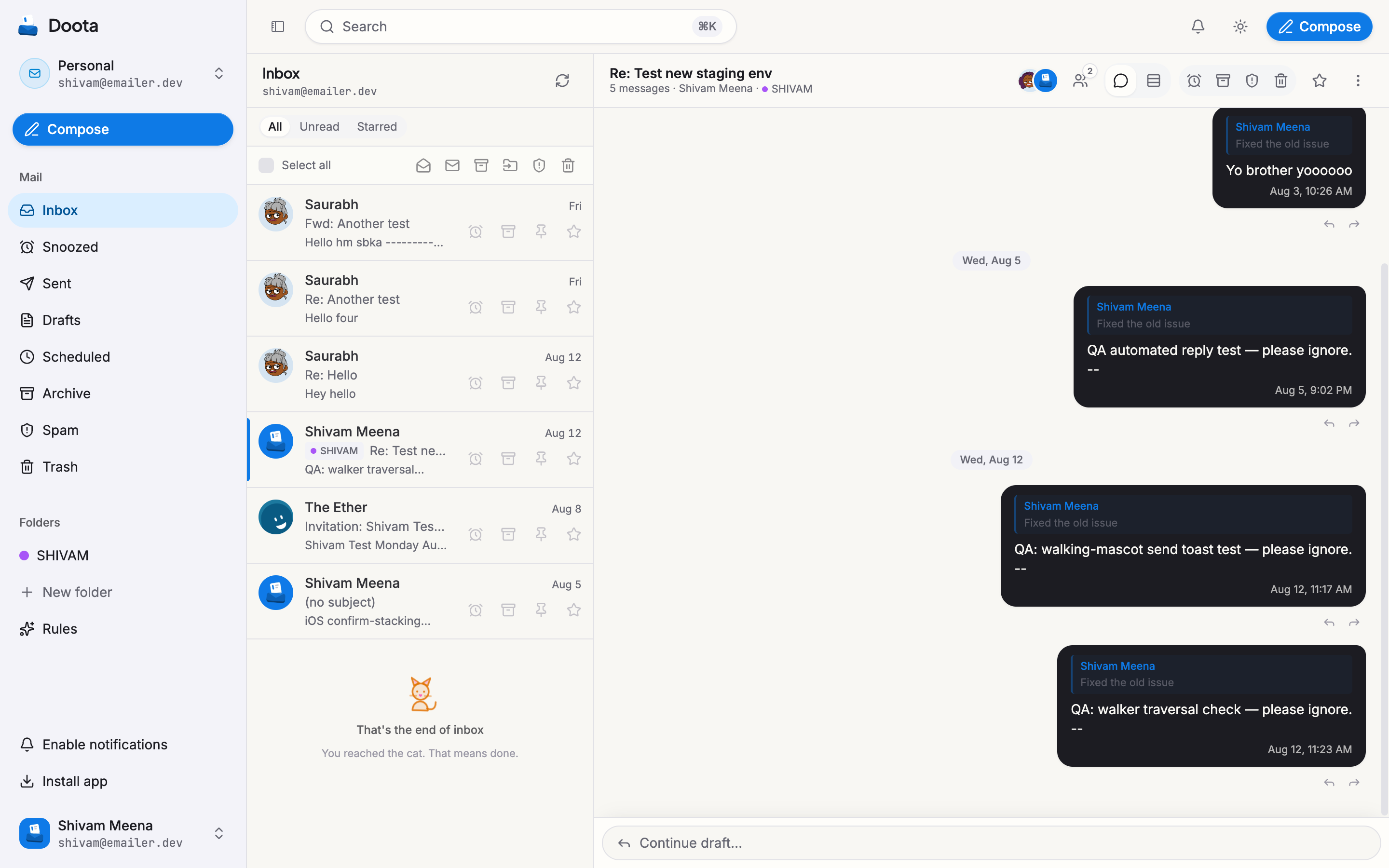
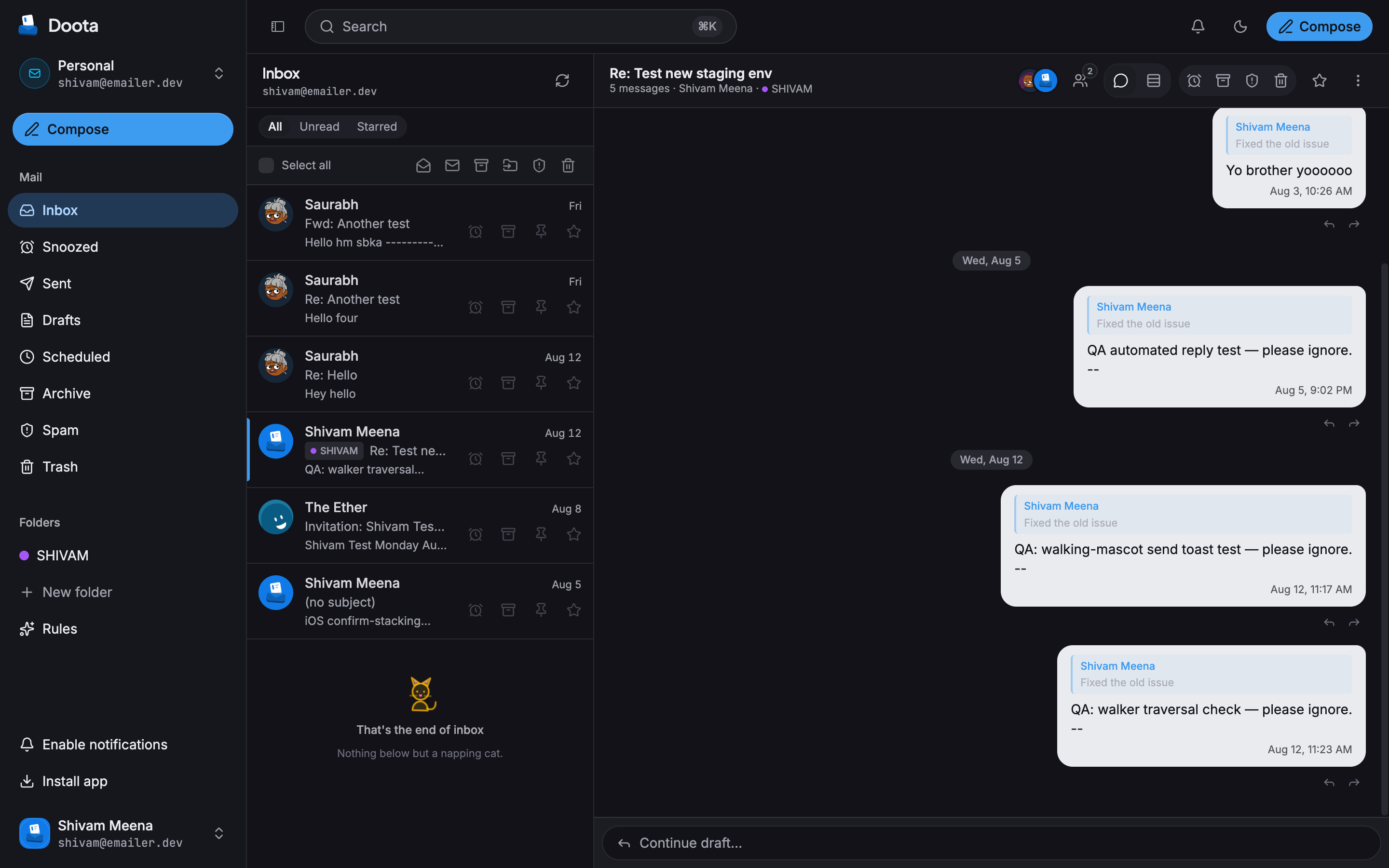
Doota’s big idea: conversations, not folders. Everything with one person (or group) sits in a single running thread, the way a chat app shows a conversation. It’s still ordinary email, so it works with whatever the other person uses.
Where mail lives
Instead of hunting through folders, every conversation is in one of a few simple places:
- Inbox — what you’re dealing with now.
- Archive — done with it, but kept if you ever need it.
- Spam — junk.
- Trash — deleted, and recoverable for a while.
- Sent — conversations you started.
- Snoozed — set aside until a time you pick; each returns to your inbox then.
Move a conversation between these anytime. If you share a mailbox with teammates, each of you organizes it your own way — moving something out of your inbox doesn’t disturb theirs.
Staying organized
- Star a conversation to flag it for later.
- Snooze a conversation to clear it from your inbox until a time you choose — later today, tomorrow, this weekend, or any date and time (just type “in 2 days” if that’s easier). It returns to the top of your inbox then, and a reply always brings it back early. From the Snoozed view you can reschedule it or send it back to your inbox right away.
- Labels are your own tags — “travel”, “invoices”, “family” — to group related conversations.
- Pin a conversation to keep it at the very top of the list.
- Doota keeps track of what you’ve read, so unread mail stands out.
Want mail to sort itself? See Organizing your mail for rules that label, file, or forward incoming messages automatically.
Finding things
Press ⌘K (or Ctrl+K) to search. Free text finds words in your mail, and
filters like from:, has:attachment, and after:7d narrow it down. Search is
fast because Doota keeps a readable index of your mail — see
Search for the filters and what that means for privacy.
Want a heads-up when mail lands? Turn on notifications.
Sharing an inbox with a team
A mailbox can be shared — handy for something like support@ or hello@. When
it’s shared, a conversation becomes a little shared workspace:
- Assign a conversation to a teammate so everyone knows who’s handling it.
- Add a private note that only your team sees — never the person you’re emailing.
- A quiet history shows who did what (assigned it, moved it), so nothing gets dropped.
Is this really from them?
Email addresses are easy to fake, so Doota checks each message against the sender’s own published rules (the same authentication banks and big providers rely on). When a message checks out, you’ll see a green Verified badge under the sender — it means “this really came from that domain.” The same badge shows on the contact card.
Doota also marks whether a sender is on your team or external, so a message that claims to be from a colleague but comes from outside is easy to spot. A message with no badge simply couldn’t be verified — treat it with a little more caution, especially if it’s asking for something.
Reading a message
Open a conversation and messages read top to bottom, newest at the end. Files someone sent you show up as attachments you can download — Doota checks each one first (see Attachments).